
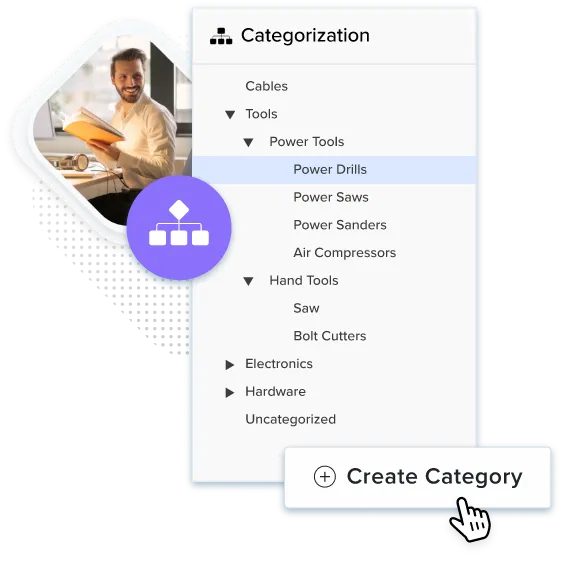
Managing your online store starts with knowing how to add products to collections in Shopify. Collections group similar items so shoppers can quickly find what they want. For merchants running more than one store, good collection setup is about more than appearance — well-organized collections help customers browse faster and make buying decisions more easily.
As your business expands into new countries, collection management becomes more complex. You’re not only organizing products: you’re syncing data, handling translations, and keeping product relationships consistent across multiple storefronts. Getting collections right early makes scaling much smoother later on.
1. Understanding Shopify Collections: Manual vs Automated
There are two distinct approaches. A manual collection lets you select each product individually, giving you complete control over product placement and sort order. According to Shopify’s official documentation, these collections maintain the same product catalog unless you manually add or remove products.
Automated collections (also called smart collections) use conditional rules to dynamically include products based on criteria like tags, vendor, price, product type, or inventory levels. You can define up to 60 conditions per collection, specifying whether products must match all conditions or just one. As your catalog changes, products automatically move in or out of collections without manual intervention.
When to Use Each Type
Manual collections are best when you need tight control. Featured homepage sections, limited-time campaigns, holiday promotions, and Black Friday launches all benefit from choosing exactly which products appear and in what order. Curation like this can drive sales during important retail periods.
Automated collections shine with large or fast-changing catalogs. Collections like “Best Sellers,” price-based groupings, or “New Arrivals” manage themselves as inventory changes. If you’re a merchant running multiple stores, this distinction matters even more — managing manual collections across US, EU, UK, and APAC stores multiplies effort fast. The right mix of manual and automated collections saves significant time as you scale.
Impact on Customer Experience
When collections are well organized, customers can browse related products, compare similar items, and discover products they weren’t actively searching for. A smoother browsing experience keeps customers on-site longer and increases the likelihood of completing a purchase. Nested structures like “Women’s > Dresses > Summer Dresses” guide customers step-by-step toward exactly the product they want, reducing drop-offs and keeping the path from browse to checkout clear.
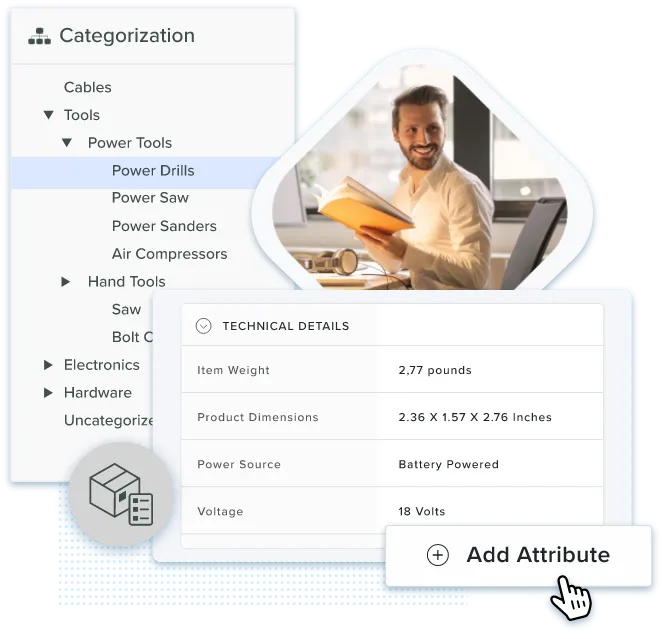
2. How to Add Products to Manual Collections
To create a manual collection: go to your Shopify admin, click Products in the left sidebar, then Collections. Click Create collection, give it a clear name and optional description (“Summer Beach Essentials” tells customers exactly what to expect; “Collection 1” does not). Under Collection type, choose Manual. Click Save, then scroll to the Products section to start adding items.
Two Methods to Add Products
For larger stores, the Bulk edit feature lets you select multiple items and update collection assignments simultaneously, significantly reducing time for major catalog updates.
Organizing Your Collection
Products appear in the order they were added, but you can customize this via the sort dropdown:
Shopify displays 50 products per page on each collection page. Collections with more products paginate automatically for browsing customers — no configuration needed.
Visual Elements and Publishing
Add a compelling image to each collection that represents its theme. Choose high-quality imagery that entices customers to explore. You can set a specific publishing date for seasonal launches or marketing campaign coordination, and add the collection to your Main Menu or Footer Menu for customer discovery. To remove products from a manual collection, you don’t delete the product from Shopify — it stays in inventory. This lets you rotate seasonal items or refresh collections without disrupting your catalog. You can also duplicate an existing manual collection, including its title, description, image, and product list, to streamline creating similar collections or market-specific variations.
3. How to Add Products to Automated Collections
Go to Products > Collections and click Create collection. Add a title, select Automated under collection type. Configure your conditions using the dropdown menus:
The Critical Decision: All Conditions vs. Any Condition
Choosing All conditions creates narrow, highly specific collections — “Women’s Red Dresses Under $50.” Choosing Any condition creates broader collections that include products meeting at least one rule, such as a “Sale Items” collection pulling in anything with a “sale” tag or products below a price threshold.
Automated collections update themselves as inventory changes. Add a new product with the tag “winter-sale” and it appears in your Winter Sale collection automatically — no manual update required. When creating the collection, Shopify immediately evaluates all existing products against your conditions, so historical products populate the collection right away.
Advanced Automation
For complex logic beyond Shopify’s native capabilities, merchants use tools from the Shopify App Store — automation apps that enable AND/OR conditional logic by tagging products based on multiple criteria, then using those tags in smart collection rules.
Examples in Action
A fashion store can create a “Best Selling Summer Dresses” collection that automatically includes products where type equals “dress,” tag contains “summer,” and sales rank is in the top 20 percent. As trends shift, the collection updates itself. A home goods store can build a “New Arrivals” collection using products added within the last 30 days, keeping the homepage fresh without manual curation.
Multi-Store Benefit
In multi-store setups, automated collections must be created separately in each store, but consistency is easier because you can reuse the same conditional logic. When product tags change, products automatically update in the correct collections across all stores, reducing manual maintenance as your catalog grows.
4. Managing Collections Across Multiple Stores
Each online store maintains independent collections with no native duplication or synchronization. A fashion brand selling in the US, UK, and Germany must create every “New Arrivals” collection three times. When five new items launch, three separate admin panels need updating. When seasonal items are discontinued, the same cleanup runs three times. Adding one product to four collections across five stores means managing 20 separate updates for a single inventory change.
Translation and Localization
Collection titles, descriptions, and SEO metadata need adaptation for each market. “Winter Collection” becomes “Winterkollektion” in German stores and requires culturally appropriate descriptions per region. Collection images may also need customization — what works on a US homepage may not align with preferences in Japanese markets, where aesthetic standards and product photography conventions differ significantly.
Currency and Pricing Variations
Automated collections using price-based conditions need adjustment for each currency. A “Under $50” collection requires separate conditional logic for “Under £40” and “Under €45” equivalents. When pricing strategies shift or exchange rates fluctuate, collection conditions must update across all stores.
Product Availability Differences
Not all products in a US store are necessarily available in the EU store due to shipping rules, regulatory requirements, or inventory allocation. Managing which products appear in which collections becomes harder when catalogs differ across markets, and team coordination across regional stores requires clear documentation to prevent inconsistent customer experiences.
The Cost of Manual Management
If creating and maintaining one collection takes 30 minutes, and you manage 50 collections across 10 stores, you’re investing 250 hours annually just keeping collections synchronized. That’s time not spent on marketing, customer service, or strategic growth. This is precisely where centralized Product Information Management becomes essential.
5. Scaling Collection Management with PIM Software
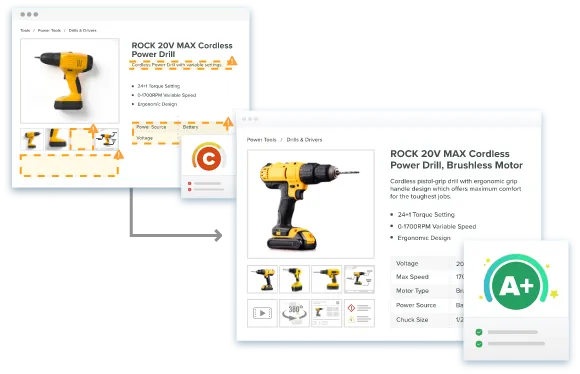
Best PIM for Shopify platforms integrate directly with your stores and synchronize product data, images, attributes, and collection assignments in real time. When you add a product to your PIM and tag it correctly, it appears in the right collections across all your Shopify stores simultaneously.
How PIM Transforms Collection Management
Real-World Scenario
A home goods retailer operates 12 Shopify stores across North America, Europe, and Asia with 5,000 products organized into 75 collections. Before PIM: adding a new product required 12 separate collection assignments, seasonal transitions meant 900 individual collection updates (75 collections × 12 stores), and inconsistencies appeared regularly with products missing from collections in some markets.
After PIM: new products automatically populate appropriate collections across all stores based on centralized rules, seasonal transitions happen with one bulk operation affecting all stores simultaneously, and collection performance is monitored from a unified analytics dashboard.
ROI Calculation
If your team spends 20 hours each month managing collections manually across multiple stores, PIM automation saves 240 hours per year. At a loaded cost of $50 per hour, that’s $12,000 in annual savings — before accounting for improved customer experience, fewer errors, and faster time-to-market for new products and collections.
As your business grows from three stores to ten to fifty, your collection management workload stays constant rather than multiplying with each new storefront. That scalability frees your team to focus on strategic initiatives that actually drive sales.

Key Takeaways

Frequently Asked Questions
There’s no limit to how many products you can add to a collection. Shopify displays a maximum of 50 products per page on collection pages, so collections with more items paginate automatically for browsing customers. This happens without any configuration needed on your end.
Yes. A product can belong to multiple collections simultaneously. From the product page in your Shopify admin, use the Collections field under Product organization to select all the manual collections where that product should appear. This lets customers discover the same product through different browsing paths — New Arrivals, Best Sellers, a category collection — without duplicating the product.
A manual collection requires you to select each product individually and only changes when you manually add or remove products. You add entire products, not specific variants. Smart collections (automated) use conditional rules to automatically include products matching specified criteria, updating dynamically as products are added or when product attributes change. Smart collections save significant ongoing maintenance time for large or frequently changing catalogs.
Shopify doesn’t allow direct conversion between collection types after creation. You must create a new automated collection with appropriate conditional rules, verify it captures the correct products, then delete or hide the original manual collection. You can duplicate an existing manual collection — including its title, description, image, and product list — to use as a starting point when creating similar collections.
Yes, to a point. Shopify’s native smart collections support up to 60 conditions per collection, with either all-conditions or any-condition matching. For more complex AND/OR scenarios, merchants often use automation tools from the Shopify App Store to tag products based on complex criteria, then build automated collections using those tags. This enables advanced organization while retaining the benefits of automation.
Two main approaches exist. You can manually recreate collection configurations in each store’s admin — workable at small scale but time-consuming as you expand into new markets. The more scalable approach is using Product Information Management software to centralize collection logic and automatically synchronize collection structures across all connected storefronts. PIM solutions maintain consistency, handle localization per market, and make regular collection updates manageable as you grow internationally.
Yes. When you create an automated collection, Shopify immediately evaluates all existing products against the specified conditions. Items matching the criteria appear on the collection page right away — not just products added in the future. This means a “Best Sellers” collection immediately includes your current top performers based on historical sales data, and continues updating as new products rise to the top.
Where to Next?
Collections are the navigation layer that connects your catalog to your customers. For a single store, good collection structure is a UX win. For a multi-market Shopify operation, it’s an operational discipline. The merchants who scale without losing control are the ones who centralize collection logic early — before the manual overhead becomes a full-time job.
Centralize Your Shopify Collection Management With Catsy
Catsy’s PIM manages collection hierarchies, conditional rules, localized titles, and asset distribution across every connected Shopify store — define your collection structure once, and let the system keep every storefront on course.
Book a Demo